



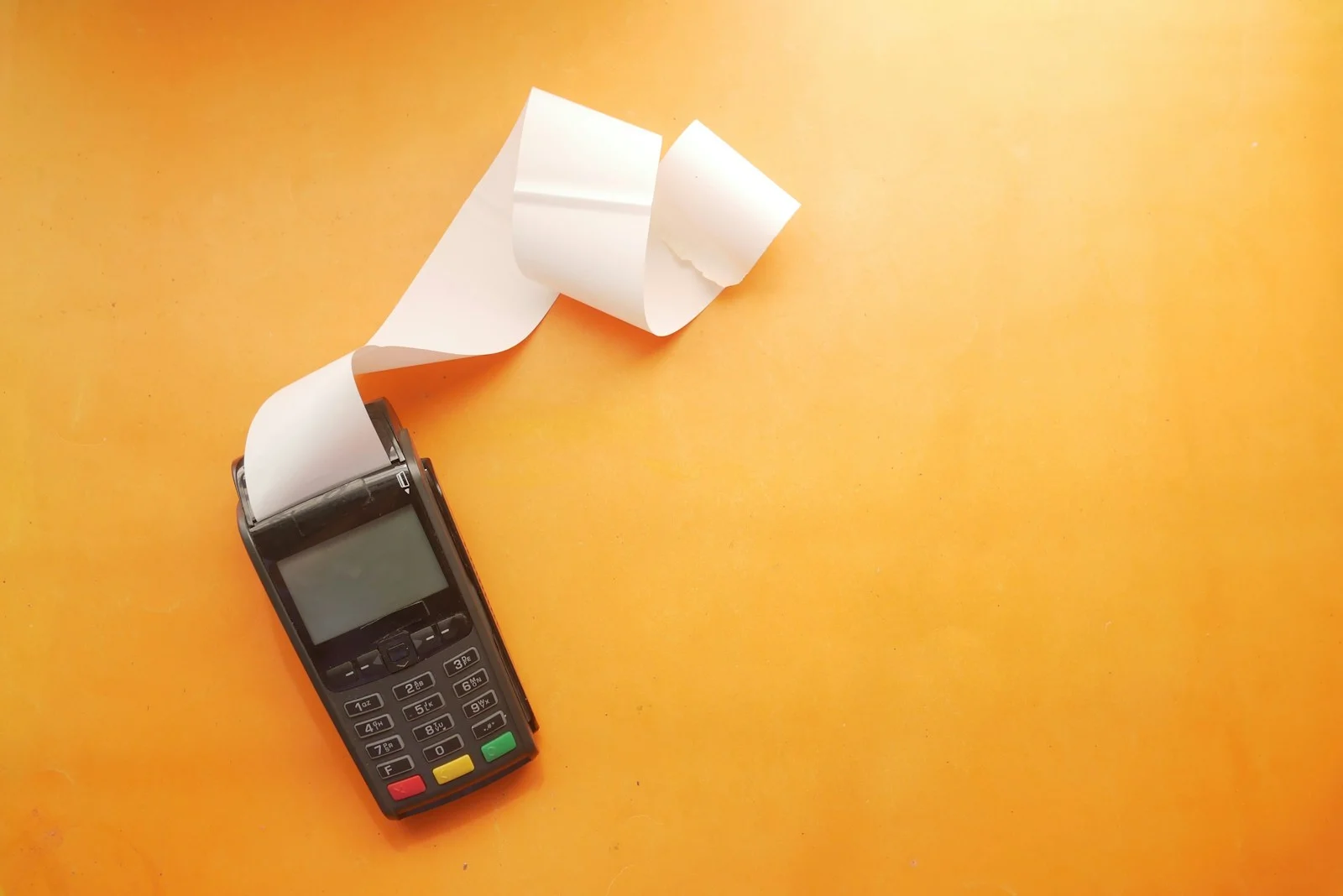
A payment terminal is a key part of modern point-of-sale systems—but like any electronic device, it may occasionally require a reset to restore proper functionality. In this article, we explain how to reset a payment terminal, when it’s appropriate to do so, and what precautions to take to avoid losing data or causing further errors. We also highlight when it’s better to contact support rather than attempt a manual reset.
When should you reset your payment terminal?
You should only reset your terminal when there is a clear need to do so. Common situations that justify a reset include:
- No connection to the network (Wi-Fi, GPRS, or LAN) – the terminal cannot reach the payment processing server;
- Frozen screen or no response to input – the terminal stops reacting to touch or button commands;
- Failed software updates or issues with POS integration – the terminal malfunctions after a sync or update;
- Unusually slow payment authorisation – the process hangs or times out;
- Message on-screen recommending a system restart or reboot.
A timely reset in these cases can restore normal operation without the need to contact a support hotline or interrupt sales.
CVC code on a card – what is it and how does it protect your online payments?
How to reset a payment terminal – common methods
The reset procedure varies depending on the make and model of the terminal. However, the following are the most common and recommended methods used across popular devices:
- Soft reset (safe restart)
A soft reset simply reboots the device without deleting any saved settings or transaction data. It is the safest first step when troubleshooting.
How to perform a soft reset:
- Via buttons: press and hold two buttons simultaneously—typically [Yellow] + [Dot] or [F] + [Yellow], depending on the model.
- Via menu: navigate to “Settings” → “Diagnostics” or “System” → “Restart Device”.
- Via POS software (if integrated): use the interface to remotely reboot the terminal.
- Hard reset (power cycle)
If a soft reset fails, a hard reset might be necessary. This involves fully powering down the device and turning it back on.
How to perform a hard reset:
- Disconnect the terminal from its power source (for wired models).
- Remove the battery, if your model includes one.
- Wait 10–15 seconds and then turn the device back on.
Some terminals also feature a physical RESET button, often located in a small hole at the back – use a paperclip to press it if needed.
Is it safe to reset a payment terminal?
Yes – as long as you follow the correct procedures and avoid resetting during an active transaction. A soft reset does not affect stored configurations, logs, or payment history. Your terminal should return to its normal working state after restarting.
That said, hard resets should be used with a bit more caution. While they typically don’t result in data loss, they may require the terminal to reestablish connection with the POS system or re-enter an activation code. Always make sure any pending transactions have been processed before resetting.
Fenige Solution – Card-to-Card Transfer and Seamless Financial Mobility
When not to reset the terminal on your own
Some issues should only be handled by qualified service technicians or your payment provider’s support team. Avoid performing manual resets if:
- The terminal fails after a firmware update;
- The device shows repeated errors despite a restart;
- You receive a system message with a code (e.g. “System error”);
- The screen remains black and completely unresponsive;
- The device is under warranty and you are unsure if a reset could affect its service status.
In these cases, it’s best to contact the support department who may be able to resolve the issue remotely or advise on safe handling.
Final tips – how to reset your payment terminal safely and effectively
Resetting a payment terminal is often a quick and efficient fix for minor technical problems. To do it right:
- Always try a soft reset first;
- Make sure all transactions have been closed before restarting;
- Avoid resetting the terminal while it’s processing a payment;
- If in doubt, reach out to technical support.
When done correctly, a reset can help your terminal get back to full functionality without compromising data security or customer experience. And if you want to ensure your terminal stays up-to-date, secure, and fully supported, it’s worth partnering with a modern payment solutions provider like Fenige, which offers real-time system updates and reliable technical assistance.